Beyond Mobile Embedded PDFs: Creating the Visual Catalog
The backstory
Recently, I have been building Un-Official free websites for local business and resources. Part of the process I have implemented includes adding relevant copies of necessary resources in various formats for better accessibility: A PDF and corresponding plain text HTML version of menus. I host these free un official pages using IPFS. Recently on mobile IPFS implemented an In browser IPFS JavaScript client. Part of the endpoint process introduced a differnt way to download a PDF, rather than handle it as It’s implemented just file download for the PDF. The new in browser adds a new view with a header with download button and then shows an embeded-pdf view of the file intended to be downloaded. This re introduces the problem I had orginally fixed, by not using an embeded PDF on the page. Mobile display of PDF especially on iPhone / iPad is particually bad, just shows one-page preview. This caused a real problem since before on iOS when it recieved the file download it whould just show the PDF in the browser and would show all pages. Now it just shows the preview and now the user is unknowingly forced to have to download the PDF to get the full picuture. This I found un acceptable and looked for another solution.
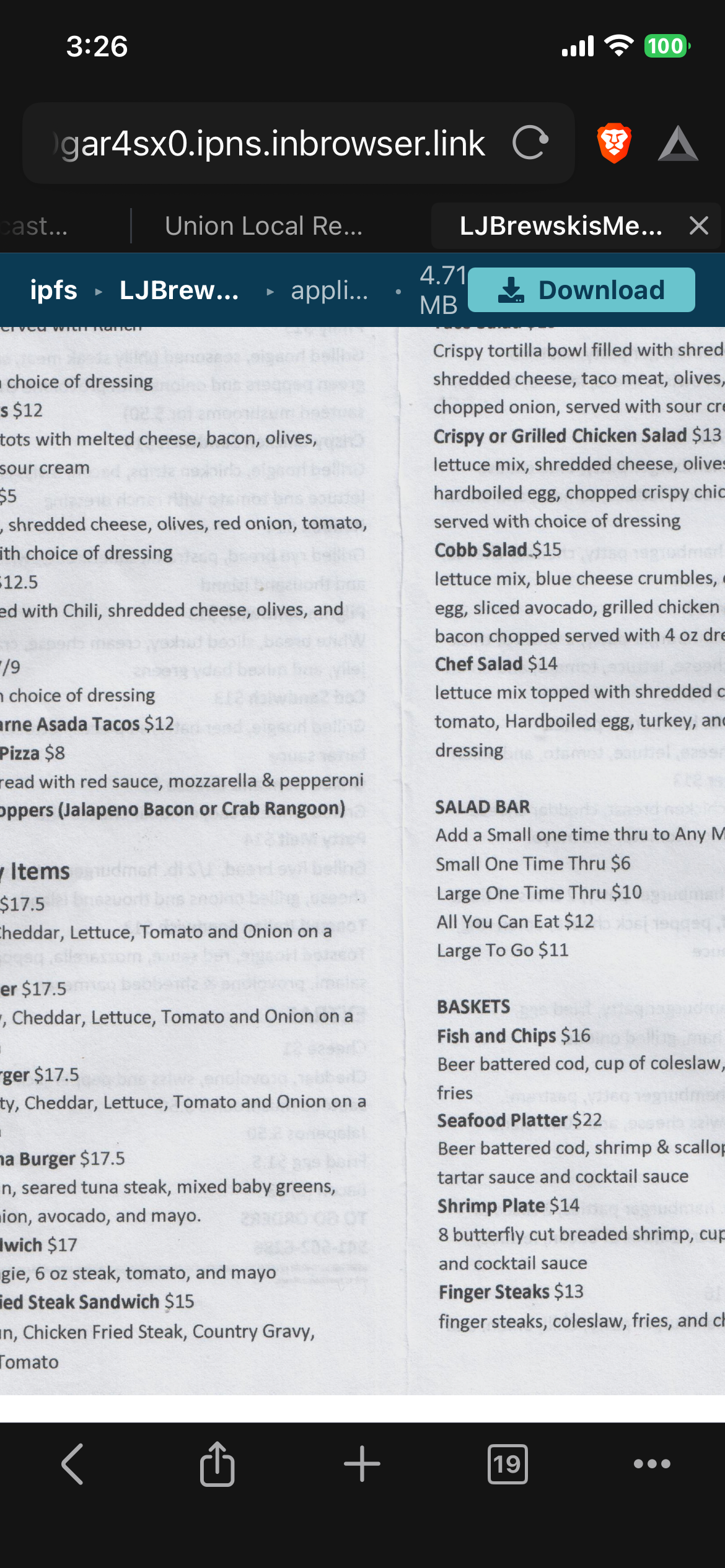
The problem: embedded PDF viewers aren’t always reliable on mobile
However, in practice, the embedded PDF viewers aren’t always reliable. Mobile embedded PDF viewers are a patchwork: some browsers render inline, some kick out to a native app, some silently fail to load a plugin at all, and the experience differs across iOS, Android, and whatever WebView flavor a given app happens to ship. For something as simple as quickly browsing a multipage menu or catalog, that’s enough fragility and frustration that PDF can’t be the only visual way to view a document. So I had to find something else.
The first pass: getting the PDF to be in HTML format and how to quickly and easily do that

Before any of this was scripted, the visual catalog format itself came from just trying something. That was open the PDF in LibreOffice Draw and then see if I could save it as HTML. It was possible exporting the PDF document to HTML through OpenOffice/ LibreOffice’s own export mechanism. It worked, and it proved the format was worth doing — but it is a manual, click-through-the-wizard process every time, no way to inject a shared stylesheet, and no way to customize page titles beyond whatever the wizard defaulted to. Fine for a one-off, not something I wanted to repeat.
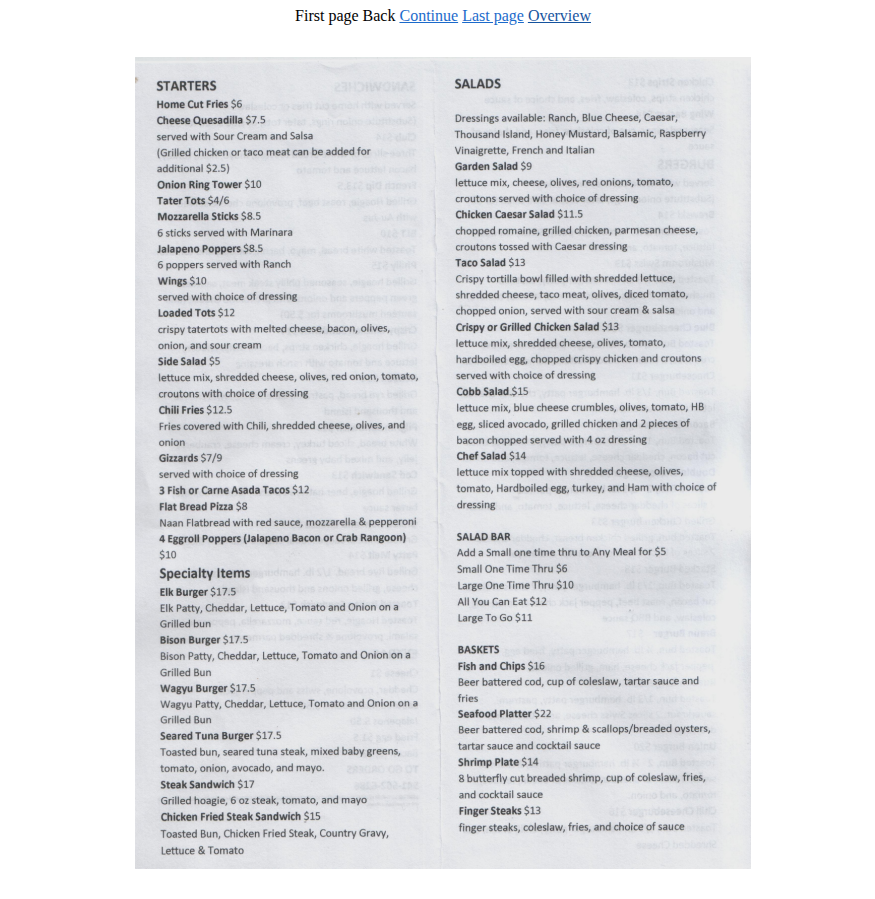
The idea: keep PDF, add a visual image based plain HTML option alongside it
To be clear, this isn’t about removing PDFs — PDF stays where it is, and it’s still the right choice is some use cases. The goal was to give it company: another, simpler format that can be offered as an alternative when the embedded viewer doesn’t cooperate. So alongside the PDF, each document can now also be exported as a set of plain HTML pages with rasterized images, the same way LibreOffice’s Impress/Draw HTML export wizard does it.
As a fallback or alternative to the PDF, that gives you:
- An overview page with a table of contents and thumbnails
- One HTML page per document page, with simple Back / Continue / First / Last navigation
- Just
<img>tags — no plugin, no viewer, no PDF.js, nothing that can fail to initialize on a flaky mobile connection, etc.
It’s a deliberately “boring” format, and that’s the point. It works the same everywhere a browser works, which is a useful property to have in reserve when you’re serving content to an unpredictable mix of devices.
This was a case for automating it with AI assistance.
That’s where AI assistance came in — not to invent the format, but to turn
the manual export into a proper one-command tool. The ask was straightforward:
take what the OpenOffice wizard produces by hand and reproduce it
programmatically, end to end, with the missing controls (folder naming,
shared CSS, custom titles) added on top. The AI handled the implementation
providing the script to handle: rendering .odg pages to PDF, rasterizing each page with
poppler, generating letterboxed thumbnails, and templating out the HTML to
match the original wizard’s structure — down to matching how the first/last
page nav links go from clickable to plain text.
Now we have a one-command tool to use visual-catalog-generator
Check out the source code here visual-catalog-generator - GitHub
The result is odg_to_catalog.py — what used to be a manual trip through
the OpenOffice export wizard is now a single command. Point it at a .odg
file, and it produces a folder like SampleMenuVisualCatalog/ containing the
overview page, per-page HTML, full-size images, and thumbnails, ready to be
pinned and served over IPFS, and perfect for adding to
Un-Offical website template sites to showcase
menus, etc.
A few things it lets you control that the manual export never did:
python3 odg_to_catalog.py SampleMenu.odg \
    --title "Sample Page Menu" \
    --css style.css --css-file mystyles.css
- Output folder name — defaults to
<basename>VisualCatalog, or set your own with--out-dir - Shared CSS — every generated page links the same relative stylesheet, so a whole set of catalogs can share one theme
- Custom titles — the overview page gets your base title as-is
(
Sample Page Menu), and every sub-page gets it numbered (Sample Page Menu - 1,Sample Page Menu - 2,Sample Page Menu - 3, …)
Under the hood it’s just LibreOffice headless for the .odg → PDF step,
pdftoppm to rasterize pages, and Pillow to build the thumbnails and
letterbox them into a consistent 256×192 box — the same footprint as the
original manual export from LibreOffice Draw.
It’s a small tool, but it adds something valuable alongside the PDF: a second format that’s boring in the best way — plain HTML and PNGs that any browser, on any platform, can render without a plugin. PDF stays as an option for anyone who wants it; the visual catalog is there for the cases where the embedded viewer isn’t cooperating.